
Adding shared parameters to a project is often a pain because you can’t batch add them through Revit’s user interface.
There are a couple of workarounds online that do the job just fine, like adding them using the “Transfert project standards” function. There are also great nodes from Archi-Lab to create/add shared parameters.
But, I decided that I’d offer an alternative that allows you to use the “.txt” shared parameters file and gives a simple user interface, where you can pick the parameters you’re interested in and set the categories the parameters are bound to. It’s important to be able to refer to a “.txt” file because it’s the only way to ensure the parameters will have the same GUID, and that they will actually be “shared”.
To add the shared parameters, I had to improve my UI.MultipleInputForm node and create a new set of nodes:
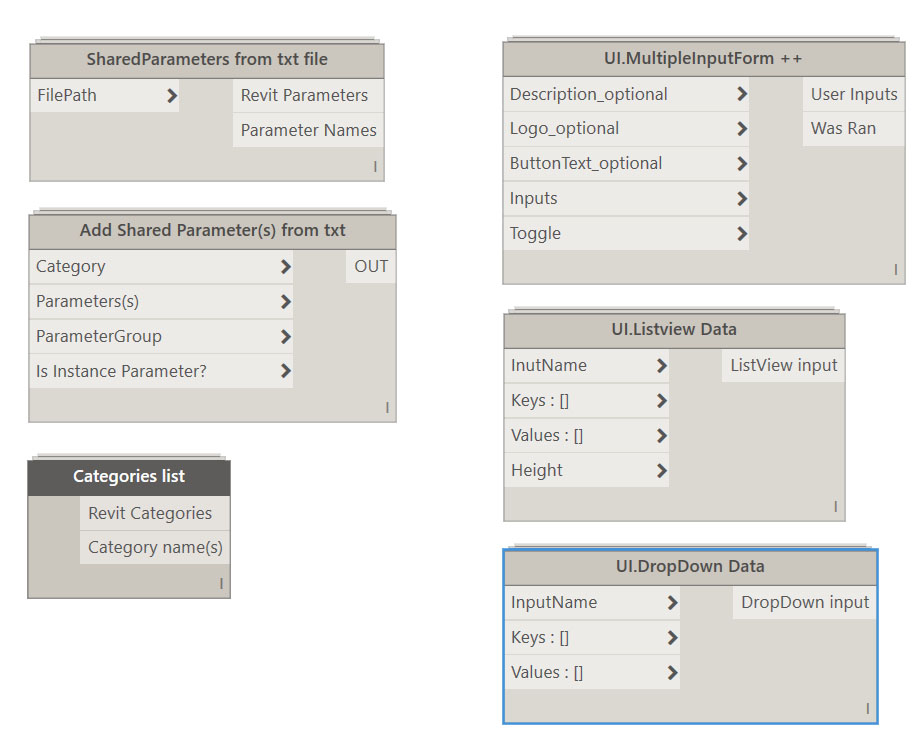
Here’s a presentation of those new nodes:
1. Shared Parameter nodes:
- Shared Parameters from .txt file returns the Revit parameters contained in a shared parameter .txt file and their names.
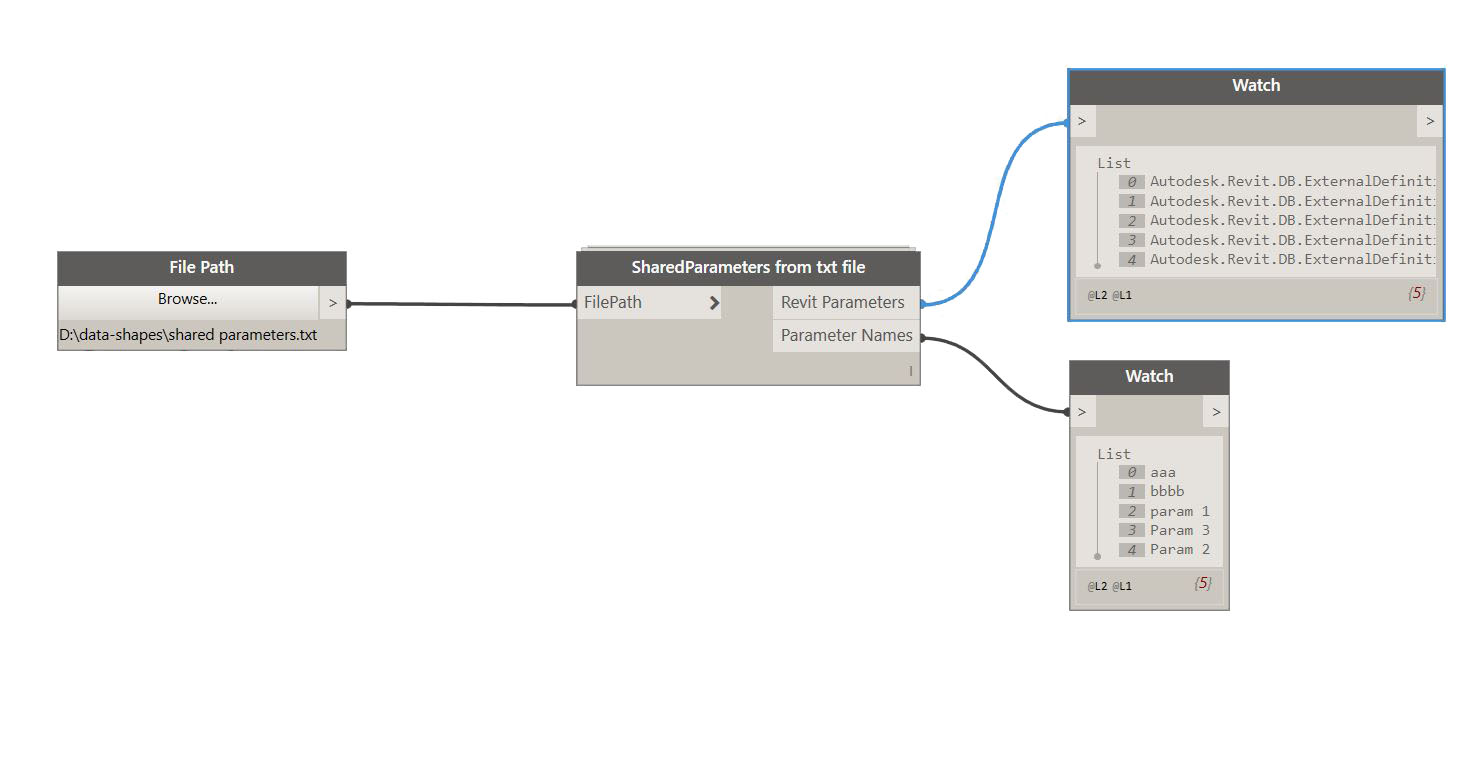
- Add Shared Parameter(s) from txt uses the parameters extracted by “SharedParameters from txt file” node .
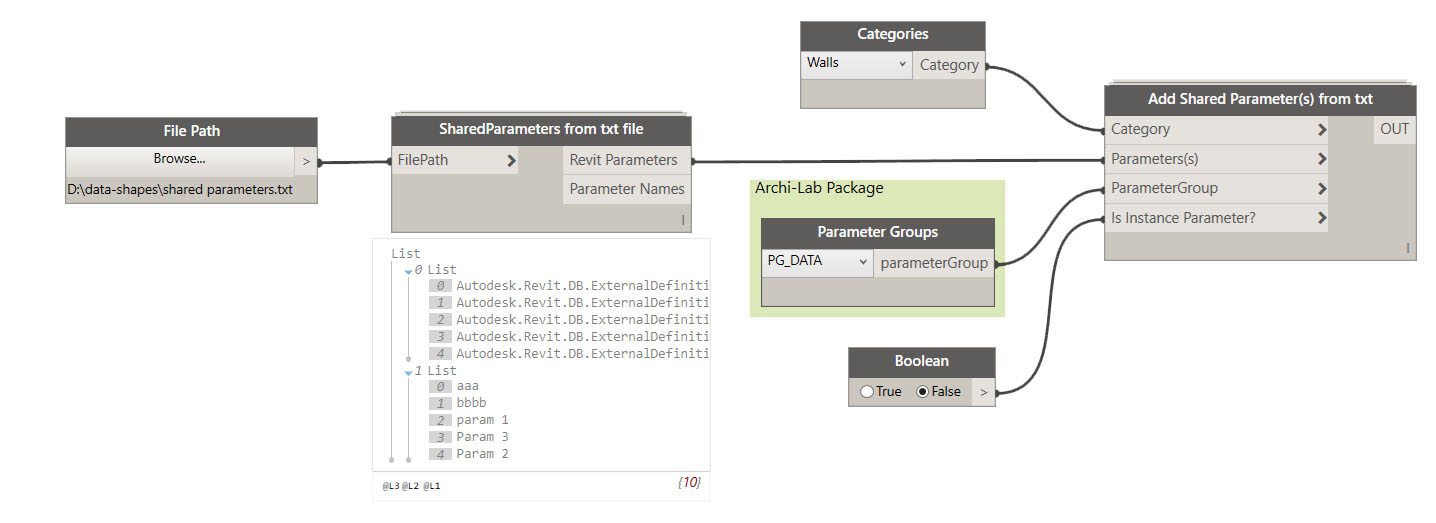
- Categories list gives out the inputs that will later on help create a ListView or DropDown input in a form.

2. UI Nodes :
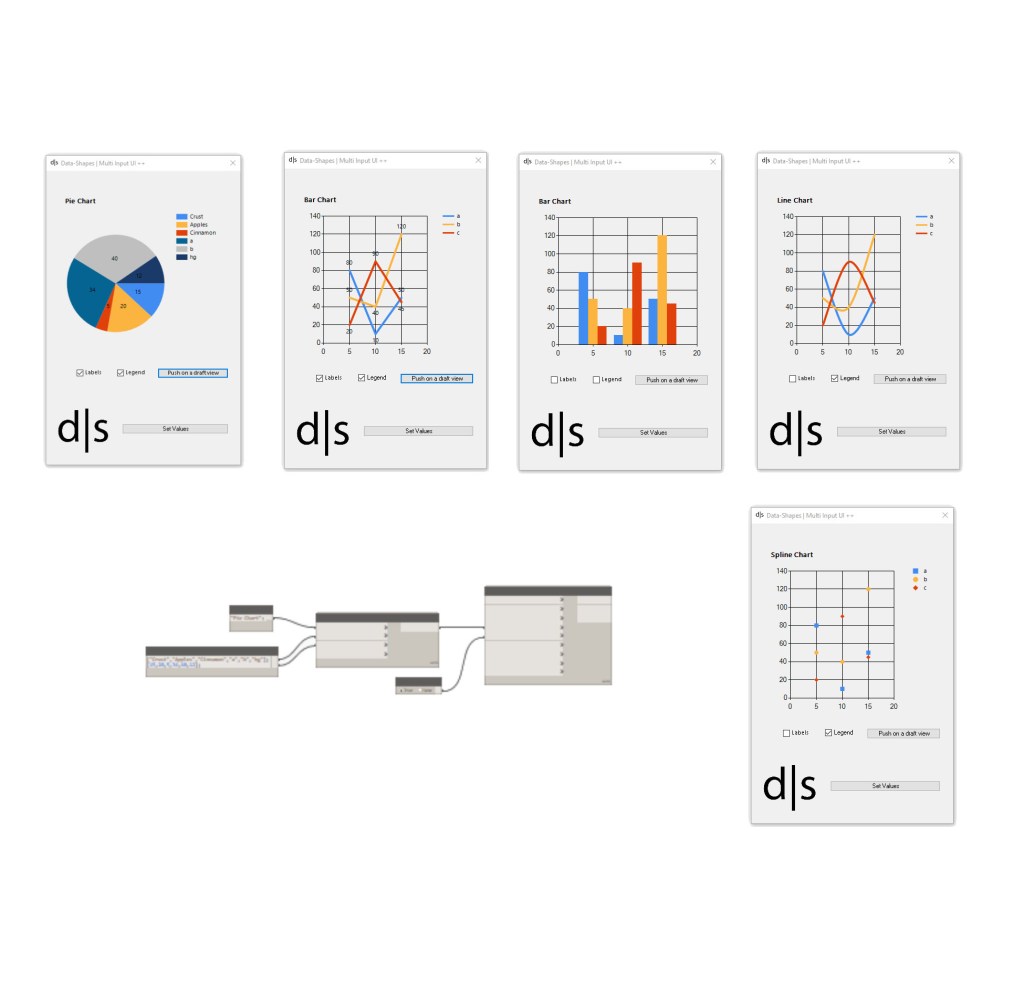
You can find all the information about the new UI nodes on this post.

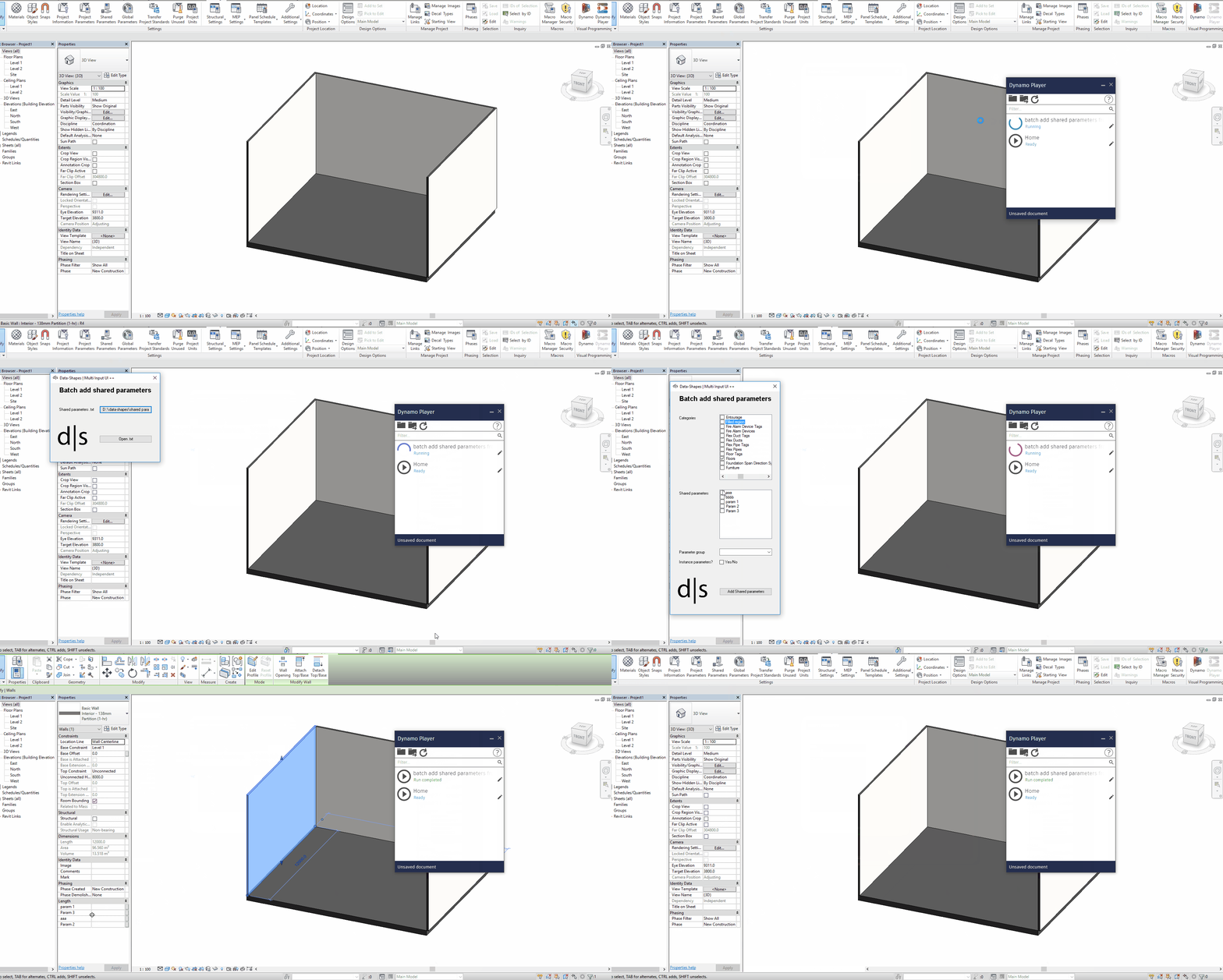
3. Batch add shared parameters from .txt file with Data-Shapes nodes and DynamoPlayer:
Now, let’s put all these new elements together to create a workflow allowing to add several shared parameters from a .txt file with a user friendly interface :
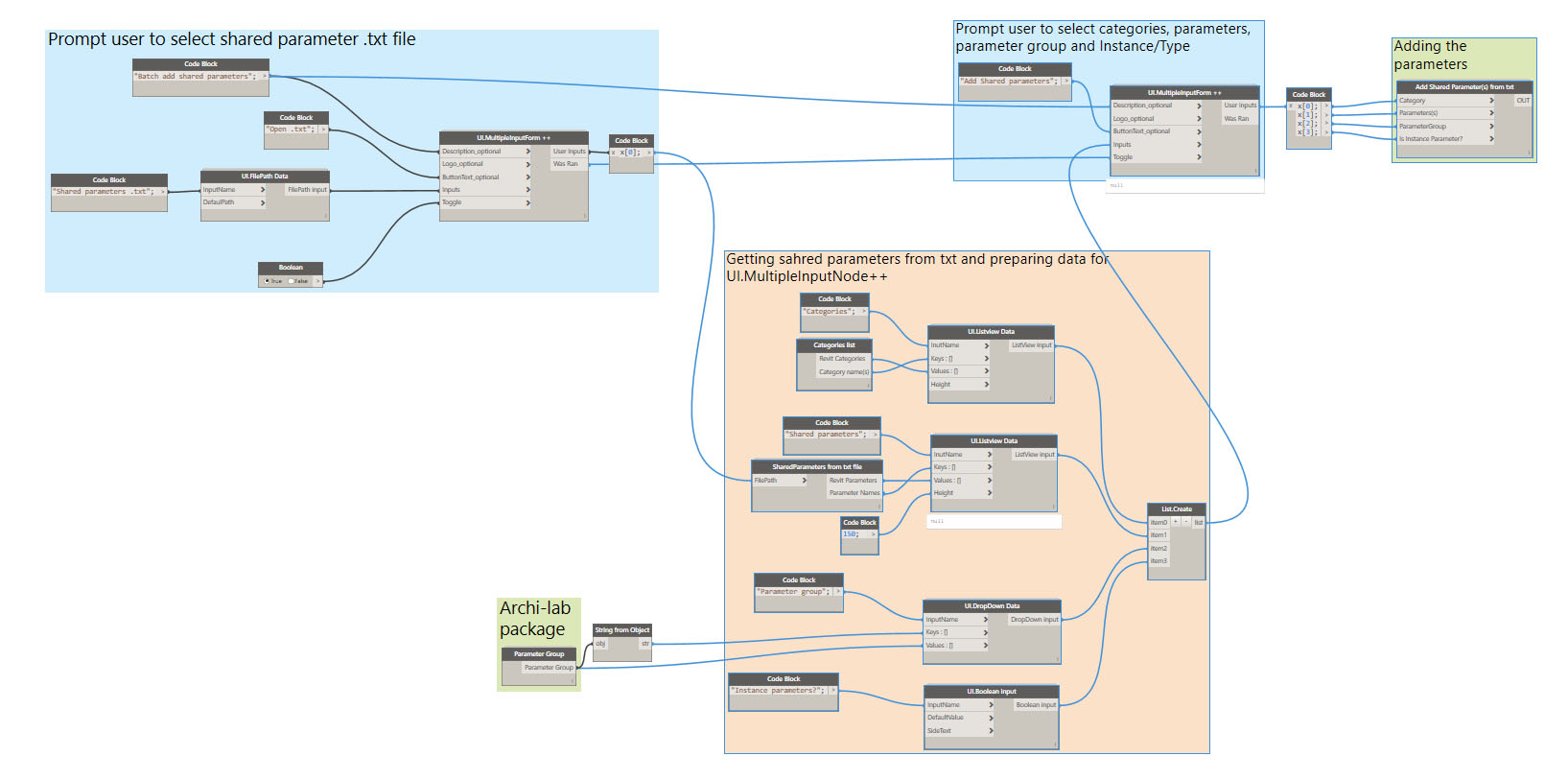
you can download the .dyn here .
This workflow is a good exemple of how you can set the Input list for the new UI.MultiInputForm++ node.
Please comment if you need extra information or if you have ideas for improvements!



 data|shapes
Leave a reply to lpsternword Cancel reply