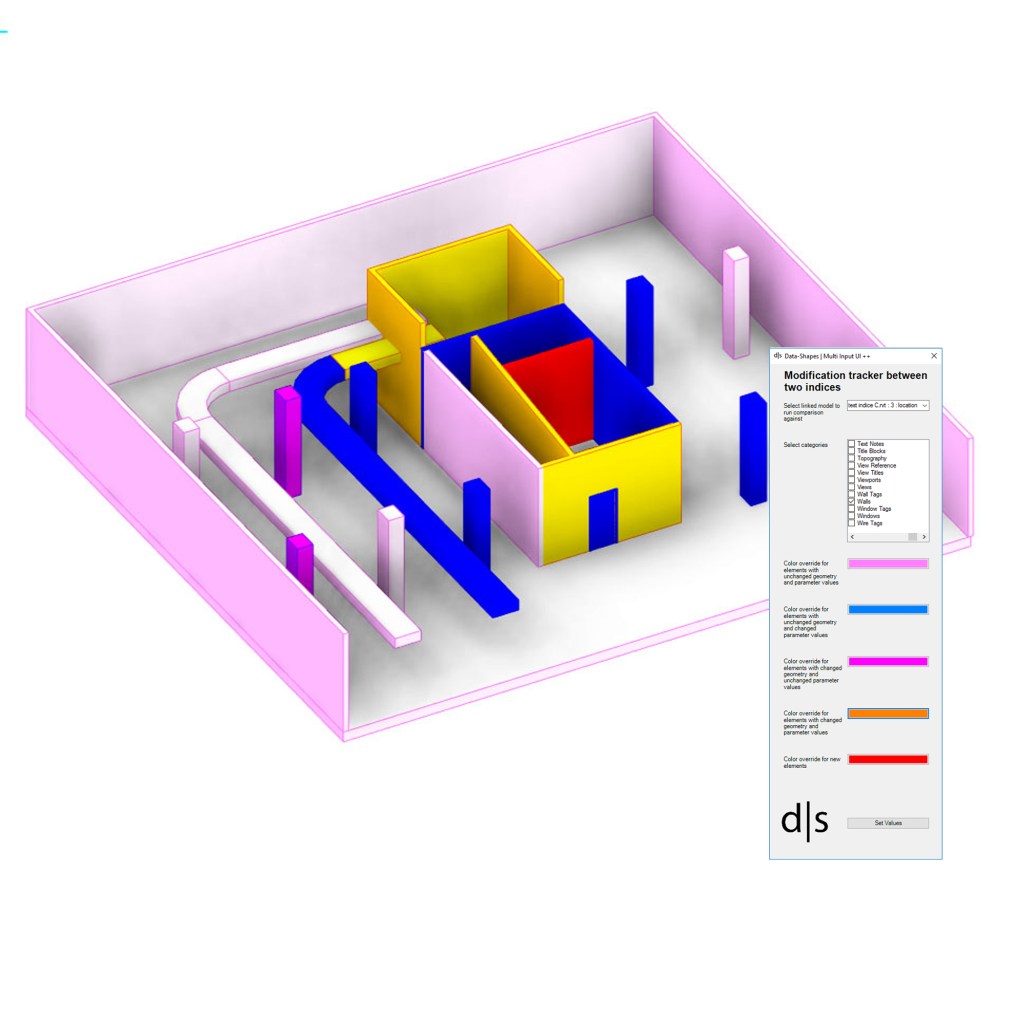
Modification tracking in a Revit model is a recurrent topic. It’s always very time consuming to compare different versions of the same model, and to figure out what’s new, what was deleted, and what has changed.
A little online research pointed me, as often, to a post from Jeremy Tammik on the building coder. In his post, he describes two approaches to the problem. One of these aproaches is to compare “snapshots” of models. His work inspired me to create a couple of dynamo nodes and workflows to facilitate the fastidious task of modification tracking!
The goal was to create an easy way to figure out what modifications occured between two versions of the same model and to offer an easy way to visualize those modifications. I will first introduce the set of nodes I came up with then I’ll develop about how they can be used in three separate workflows.
1. The Nodes:
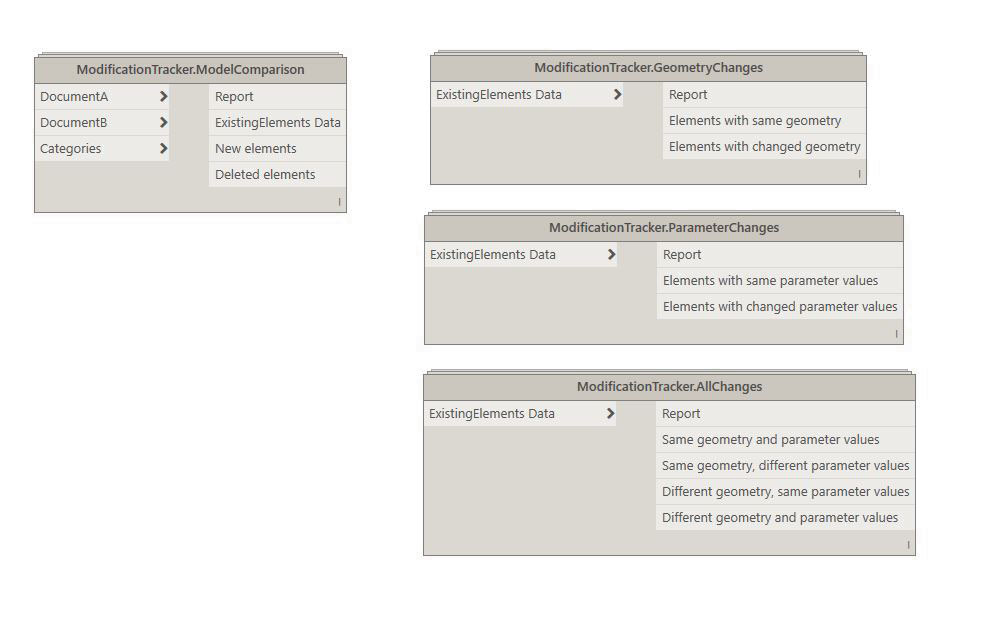
1.1 ModificationTracker.ModelComparison: This node is the first step of the modification tracking. It takes 3 inputs :
- DocumentA : Current document by default.
- DocumentB : The document you want to compare DocumentA against.
- Categories : List of categories you want the ModificationTracker to take into account
The code of this node uses the elements’ GUIDs to determine whether they are existing, new or deleted. It will return a report of the modifications and lists of the existing, new and deleted elements. The ExistingElements Data output is the data you’ll need to initiate the geometry and metadata comparisons between DocumentA and DocumentB.
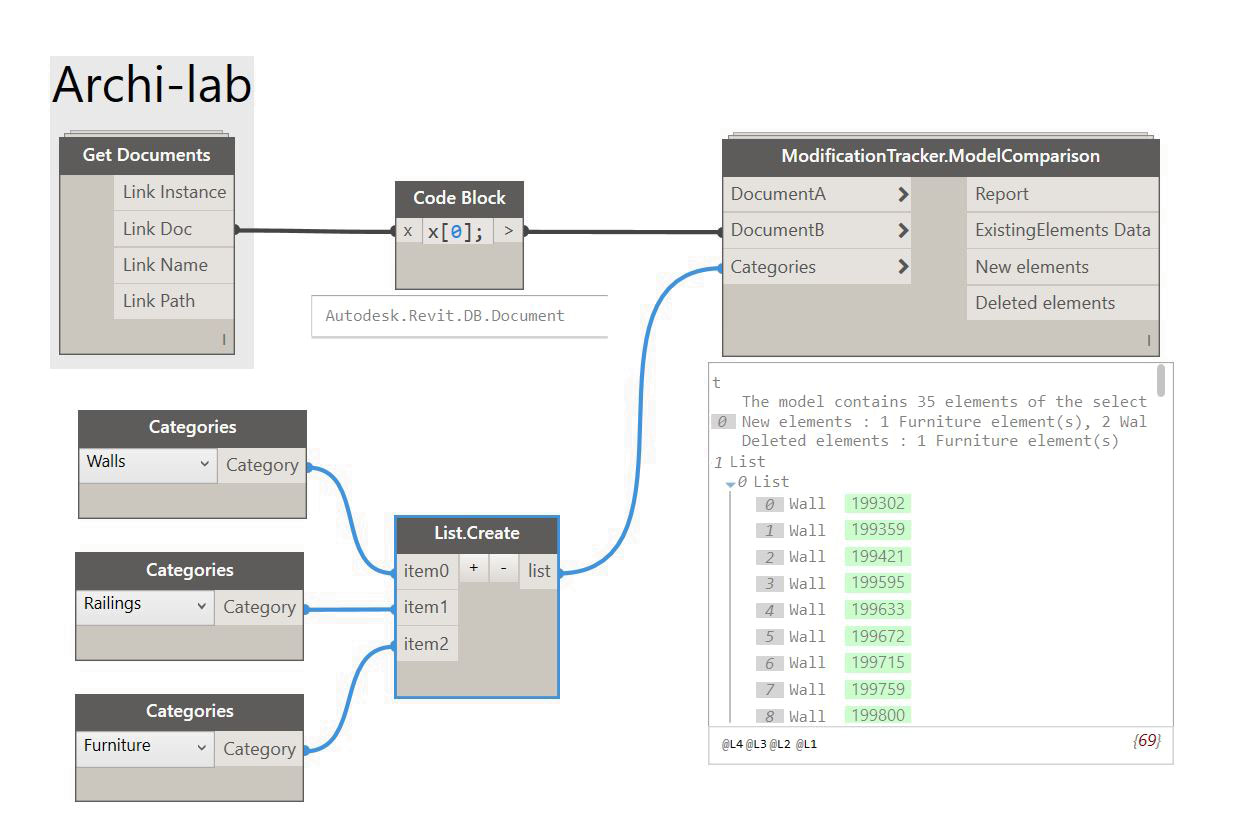
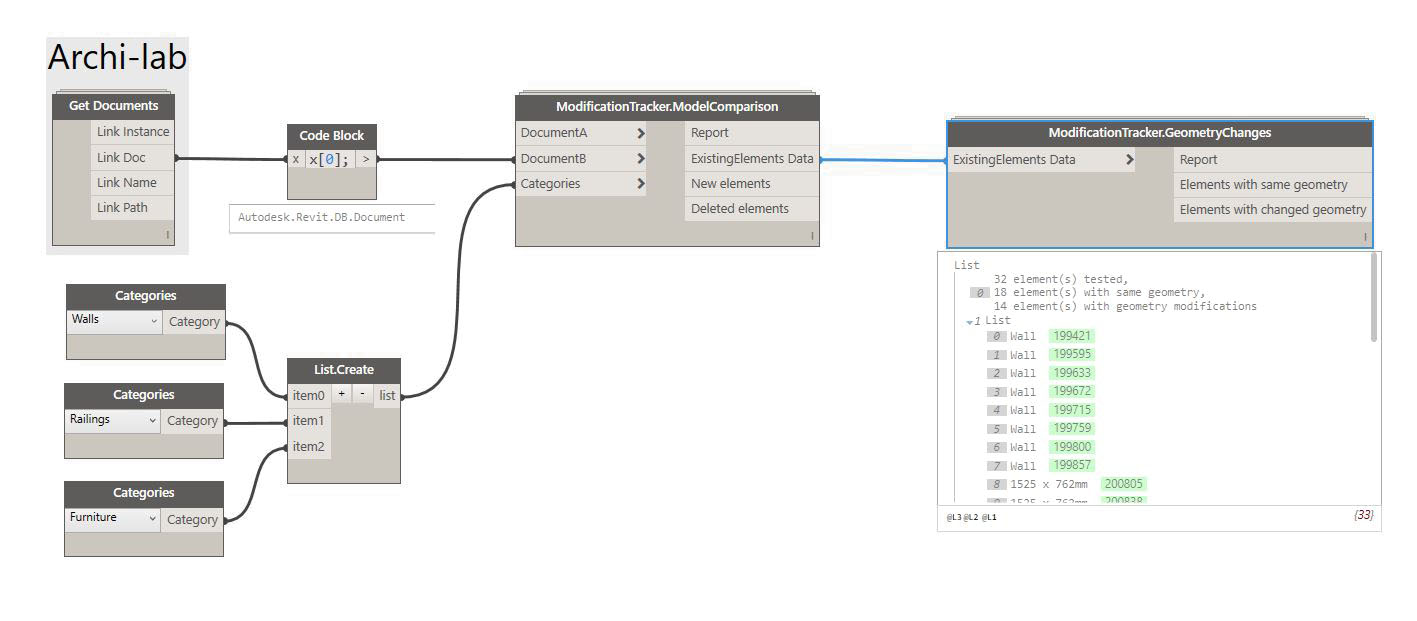
1.2 ModificationTracker.GeometryChanges: This node compares meshed approximations of the geometry of elements that exist in both DocumentA and DocumentB. It will then output the elements with the same geometry and those with a modified geometry in separate lists.
Here are the definitions I used to get the geometry “Snapshots”:
This file contains hidden or bidirectional Unicode text that may be interpreted or compiled differently than what appears below. To review, open the file in an editor that reveals hidden Unicode characters.
Learn more about bidirectional Unicode characters
| #Copyright (c) mostafa el ayoubi , 2016 | |
| #Data-Shapes http://www.data-shapes.net , elayoubi.mostafa@gmail.com | |
| #This code was inspired by Jeremy Tammik @Jeremytammik | |
| def flatten(container): | |
| for i in container: | |
| if isinstance(i, (list,tuple)): | |
| for j in flatten(i): | |
| yield j | |
| else: | |
| yield i | |
| def tostring(x): | |
| return x.ToString() | |
| def getgeomlist(x): | |
| return list(x.get_Geometry(Options())) | |
| def getvertices(x): | |
| #getting geometryelements as list | |
| geomelems = getgeomlist(x) | |
| #getting nested instance geometry for all geometry instances | |
| while any('GeometryInstance' in g for g in map(tostring,geomelems)): | |
| for index,i in enumerate(geomelems): | |
| if 'GeometryInstance' in i.ToString(): | |
| geomelems[index] = i.GetInstanceGeometry() | |
| else: | |
| continue | |
| geomelems = list(flatten(geomelems))[0] | |
| #getting all faces, keeping meshes | |
| faces = [] | |
| for i in geomelems: | |
| if 'Solid' in i.ToString(): | |
| faces.append(list(i.Faces)) | |
| elif 'Mesh' in i.ToString(): | |
| faces.append(i) | |
| else: | |
| continue | |
| faces = list(flatten(faces)) | |
| #getting all meshes | |
| meshes = [] | |
| for f in faces: | |
| if 'Mesh' in f.ToString(): | |
| meshes.append(f) | |
| else: | |
| meshes.append(f.Triangulate()) | |
| #getting all vertices | |
| vertexlist = [] | |
| for m in meshes: | |
| vertexlist.append(list(m.Vertices)) | |
| vertexlist = list(flatten(vertexlist)) | |
| #creating sorted vertex string representation of object for comparison with other indice of element | |
| vertexstr = ', '.join(sorted(set(map(tostring,vertexlist)))) | |
| return vertexstr |
1.3 ModificationTracker.ParameterChanges: This node compares string “Snapshots” of the parameters of the elements that exist in both DocumentA and DocumentB. Like the GeometryChanges node, it will return changed and unchanged elements in separate lists.
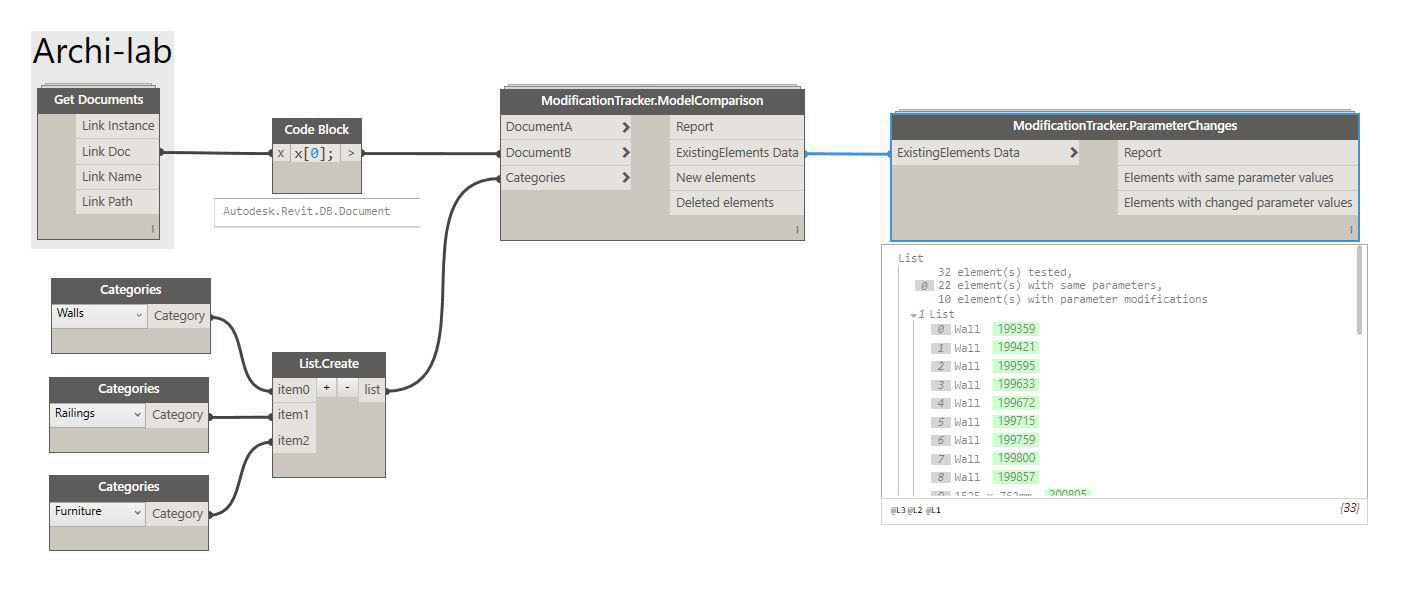
Here is the definition I used to get the parameter values “Snapshots”:
This file contains hidden or bidirectional Unicode text that may be interpreted or compiled differently than what appears below. To review, open the file in an editor that reveals hidden Unicode characters.
Learn more about bidirectional Unicode characters
| #Copyright (c) mostafa el ayoubi , 2016 | |
| #Data-Shapes http://www.data-shapes.net , elayoubi.mostafa@gmail.com | |
| #This code was inspired by Jeremy Tammik @Jeremytammik | |
| def parametersnapshot(x): | |
| parameters = x.Parameters | |
| paramnames = [p.Definition.Name for p in parameters] | |
| #Sorting is important because the parameters are queried in random order. | |
| #We need to make sure the snapshots are ordered in the same way so we can compare them. | |
| sortedindex = sorted(range(len(paramnames)), key = lambda k : paramnames[k]) | |
| sortedparameters = [paramnames[i] for i in sortedindex] | |
| paramvalues = [] | |
| for p in parameters: | |
| if p.AsString() != None: | |
| paramvalues.append(p.AsString()) | |
| else : | |
| paramvalues.append(p.AsValueString()) | |
| sortedvalues = [paramvalues[i] for i in sortedindex] | |
| return ', '.join(['%s : %s' % (param,value) for param,value in zip(sortedparameters,sortedvalues)]) |
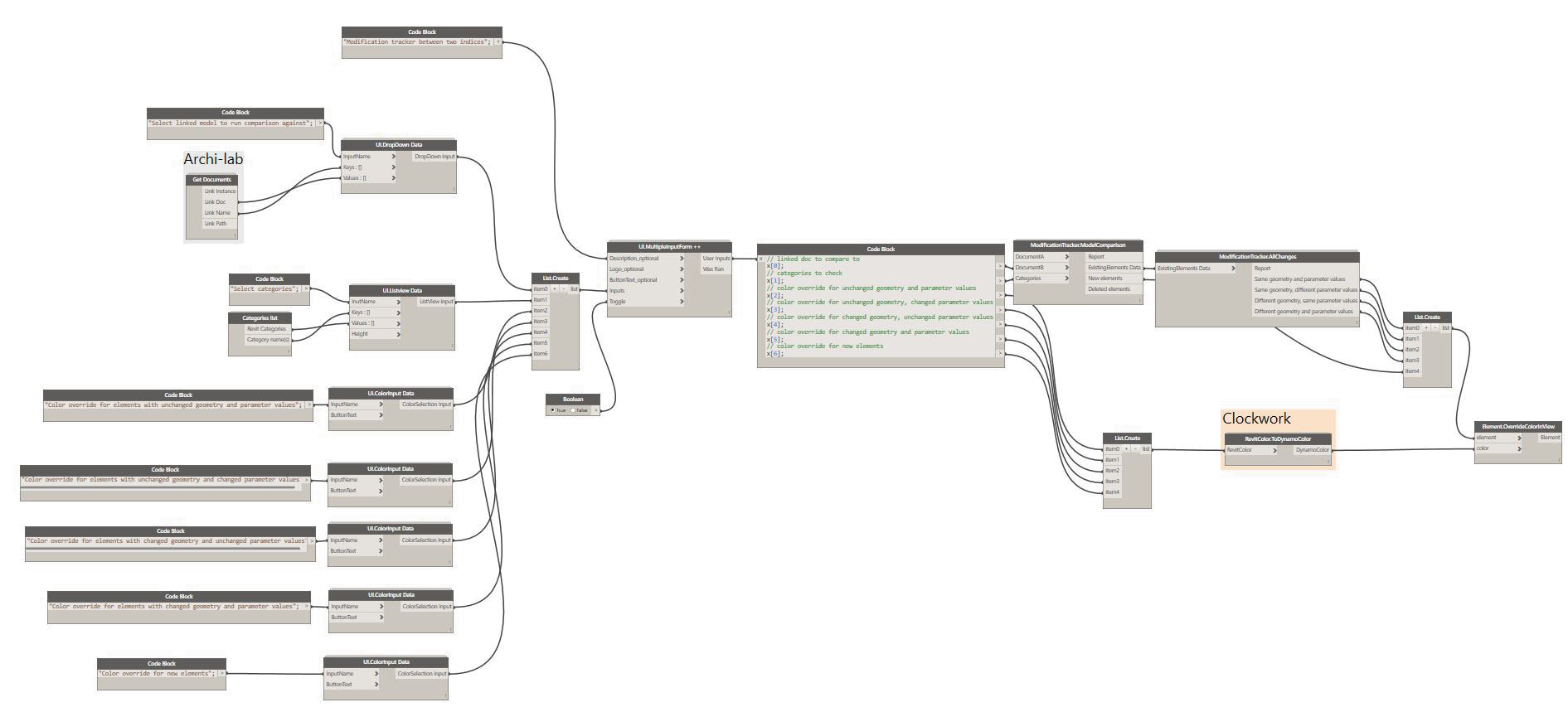
1.4 ModificationTracker.AllChanges: This node compares both the geometry and the parameters of the elements that exist in two versions of the same model:
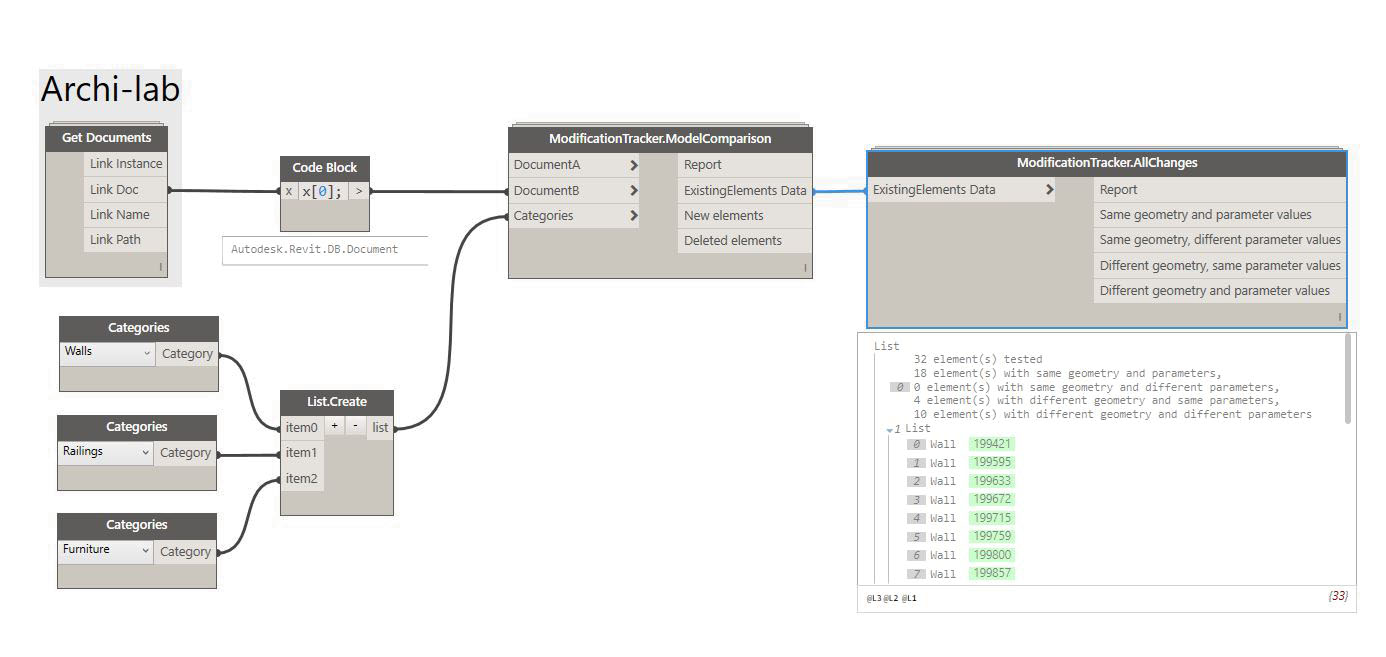
2. The Workflows
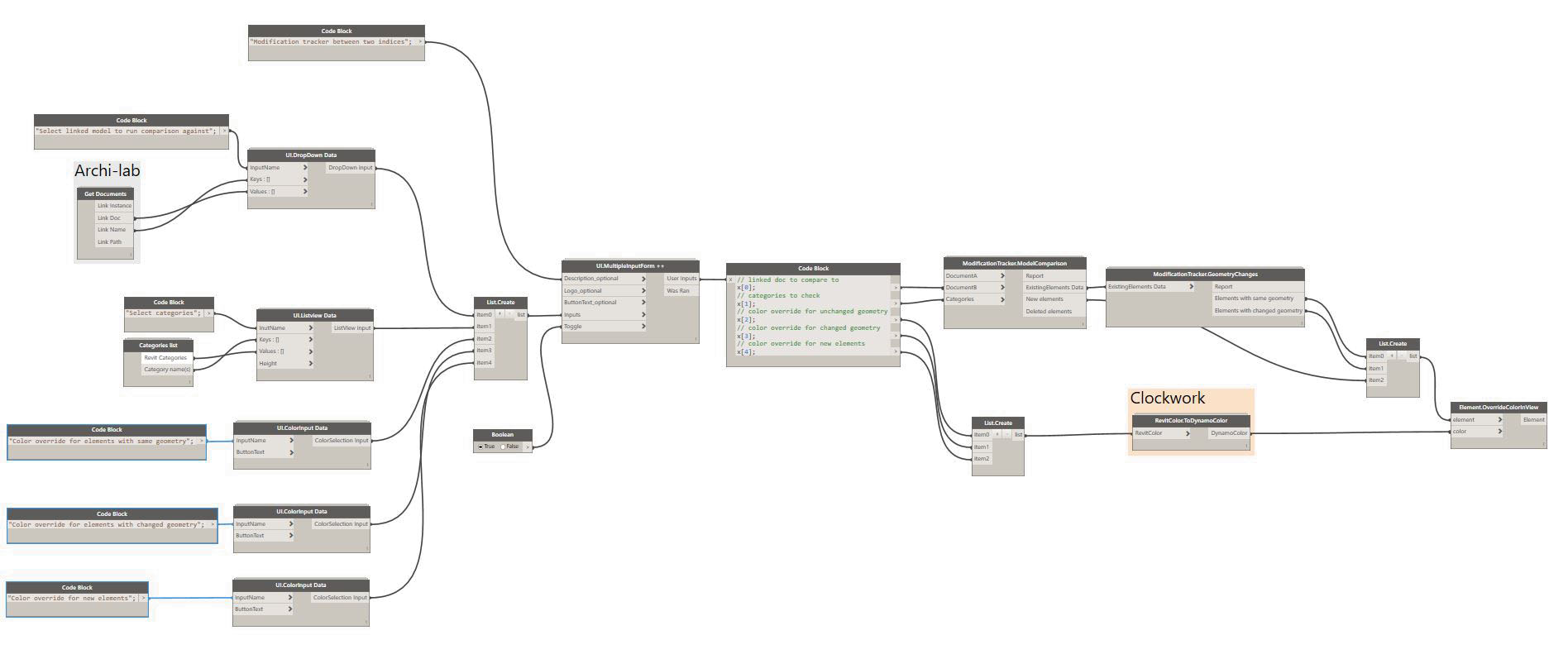
These nodes were created to serve the following workflows (I make use of UI.MultipleInputForm++ and Dynamo Player in order to make them as user friendly as possible ) :
Important note: The ColorSelection input in the form is only available with revit 2017. You will have to set the color overrides whithin the script if you are using Revit 2016 or a previous version.
2.1 Visualize geometry changes:
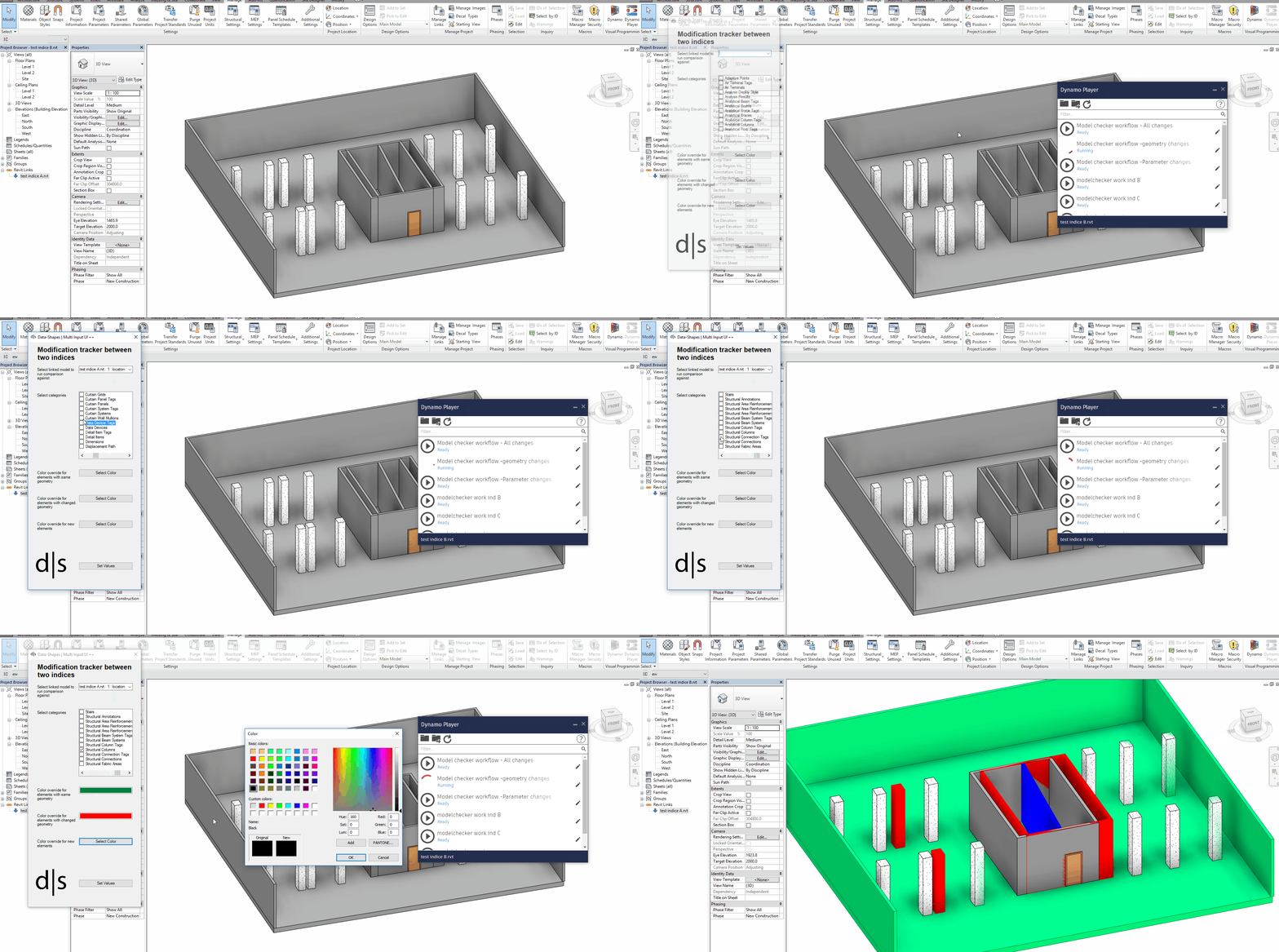
This workflow will prompt the user to select the linked model to compare the current model against, the cotegories to track and the override colors for changed, unchanged, and new elements.
To test this workflow, I have created a “Dummy” Revit file with some walls and colums, then I moved some of these columns and walls and saved it as a new version. I have tried the workflow on a “real” model with over 2000 elements and the performance was still pretty good.
2.2 Vizualise parameter value changes:
This workflow works in a very similar way to the previous one except it tracks parameter value modifications instead of geometric modifications.
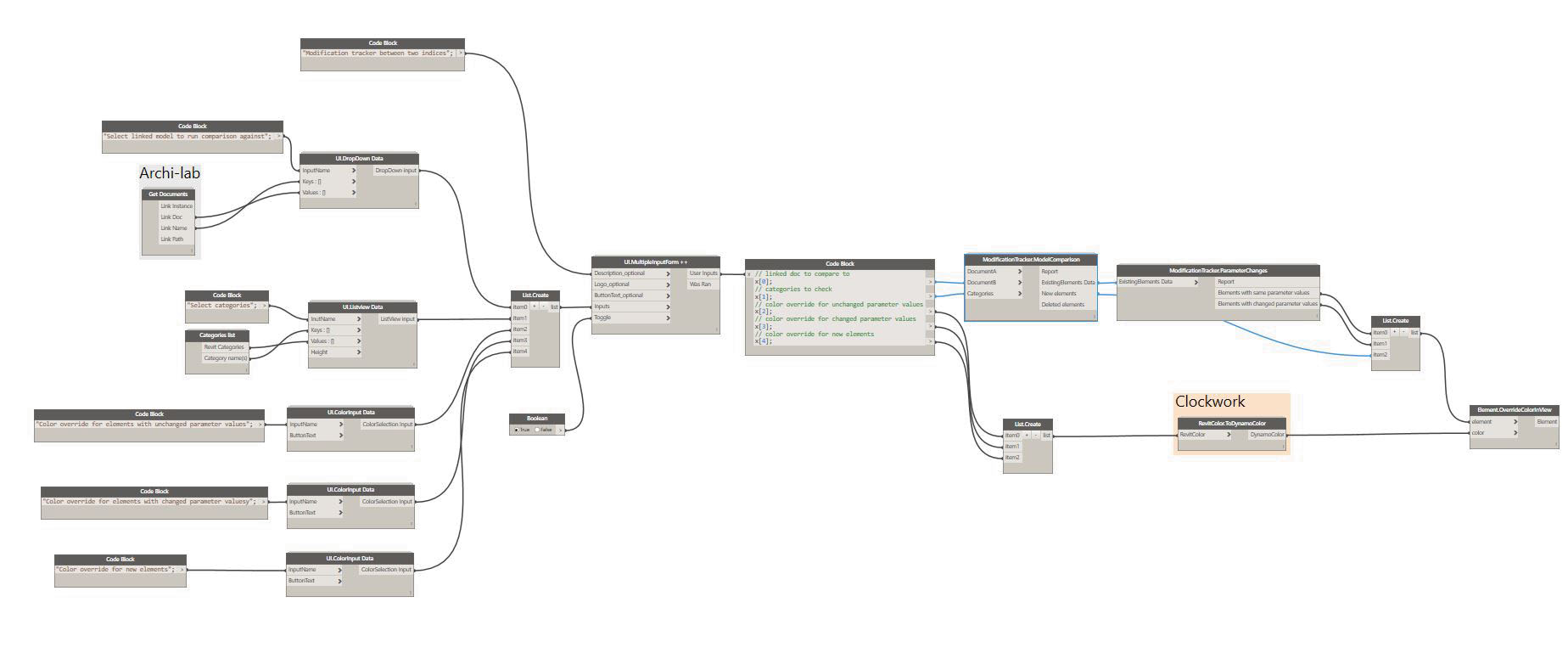
As a test, I have two versions of a same model where only some text parameter values have been changed on a wall and two columns.
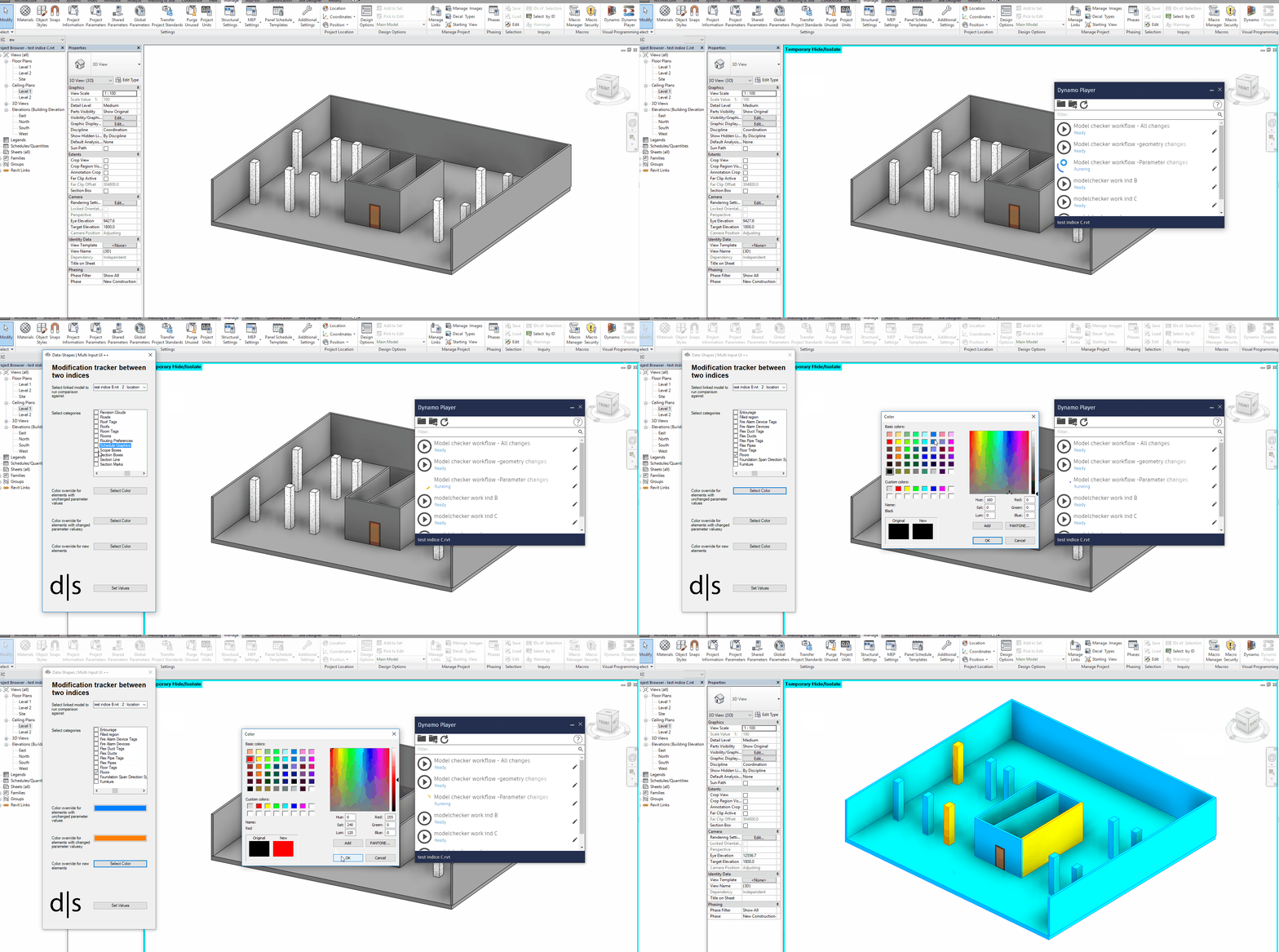
2.3 Vizualise geometry and parameter value changes:
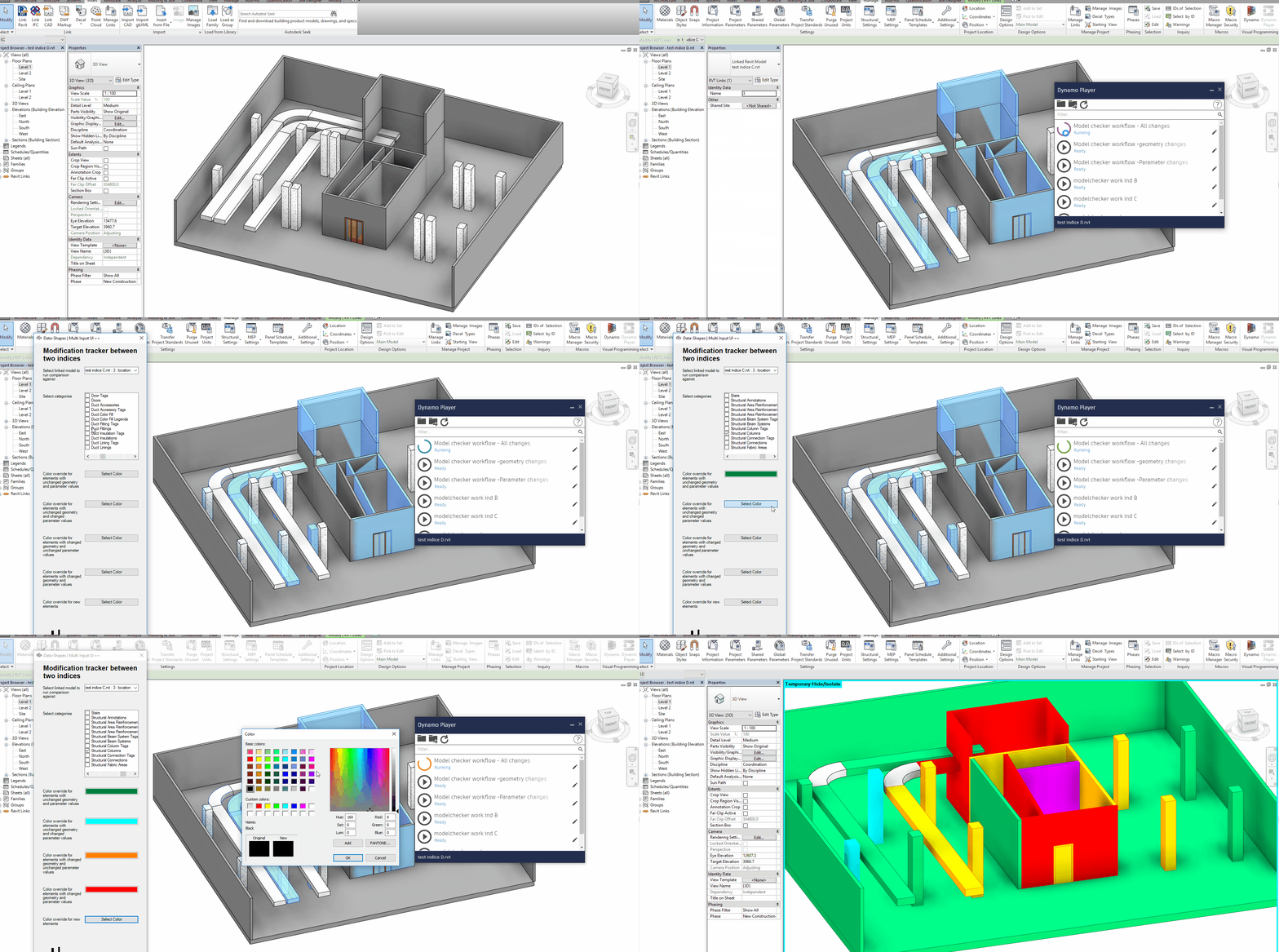
This workflow allows to track parameter value changes as well as geometric changes. It creates a form that prompts the user to select the linked file to take into account, the categories, and all the override colors.
Please let me know if you’re facing any issues with those nodes. I’d be happy to improve them!




 data|shapes
Leave a reply to Susie C Cancel reply