Hey everyone! It’s been a while since the last post. A lot has been going on and the Data-Shapes team has been very busy. Most importantly, Data Shapes is now a company! We are based in Paris and provide cutting edge support to AEC companies, involving BIM management, training and custom workflow/tool development. We are very excited about it and would love to know if you or your company may have any needs.
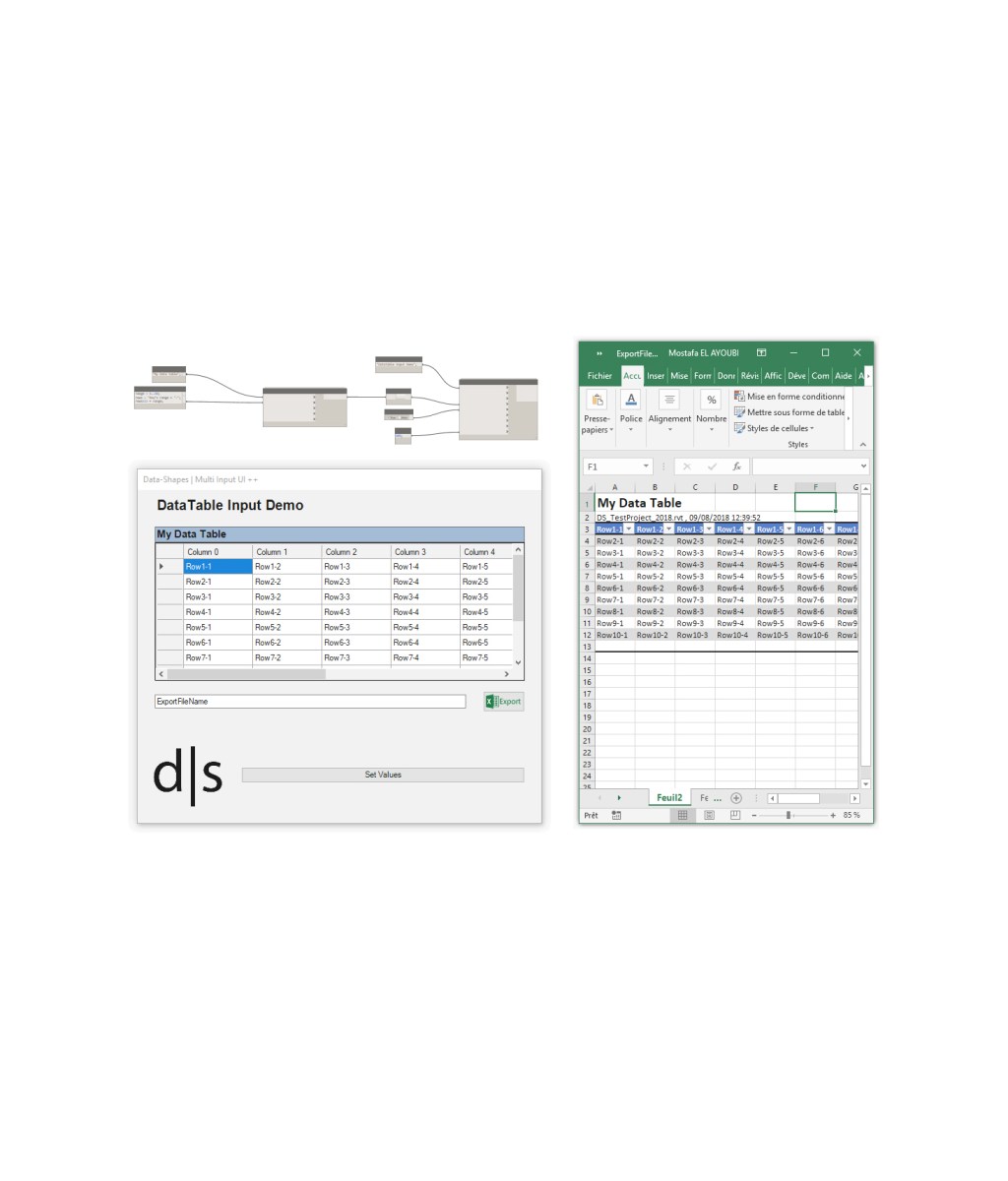
Today’s topic is the new addition to the Data-Shapes package (version 2018.8.7) : UI.DataTable. It’s been in the works for a little while and is finally ready to be shared. It basically allows to add an Excel like data table within a Data Shapes Form using UI.MultipleInputForm++ (which I assume you are familiar with by now :)).
Important note: If you update the package, you’ll have to make a little manipulation on pre existing scrpits using Data-shapes nodes : You’ll have to right clic on the new optional inputs and check “Use default value”!
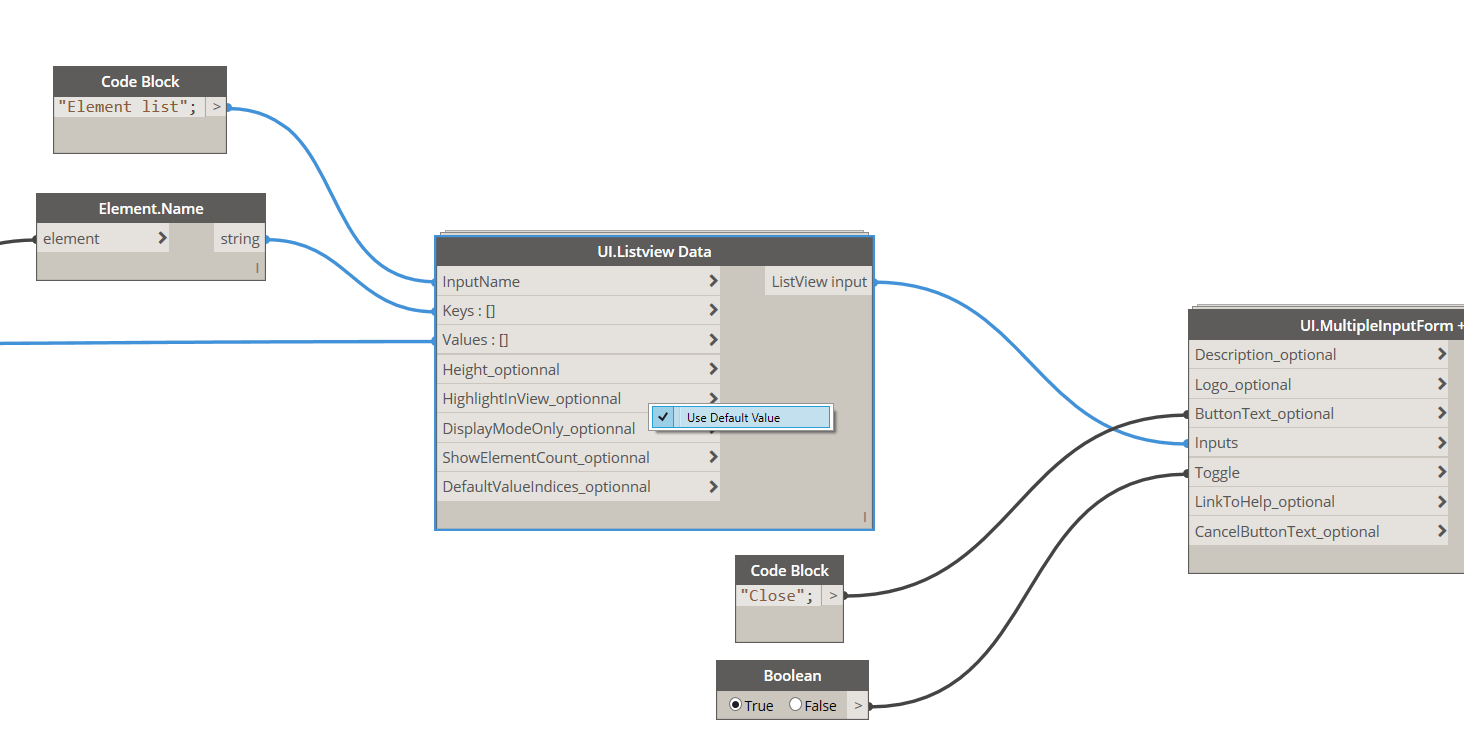
Once you activate the default values for the new optional inputs, the script will function normally. You won’t need to do this when using new instances of the nodes.
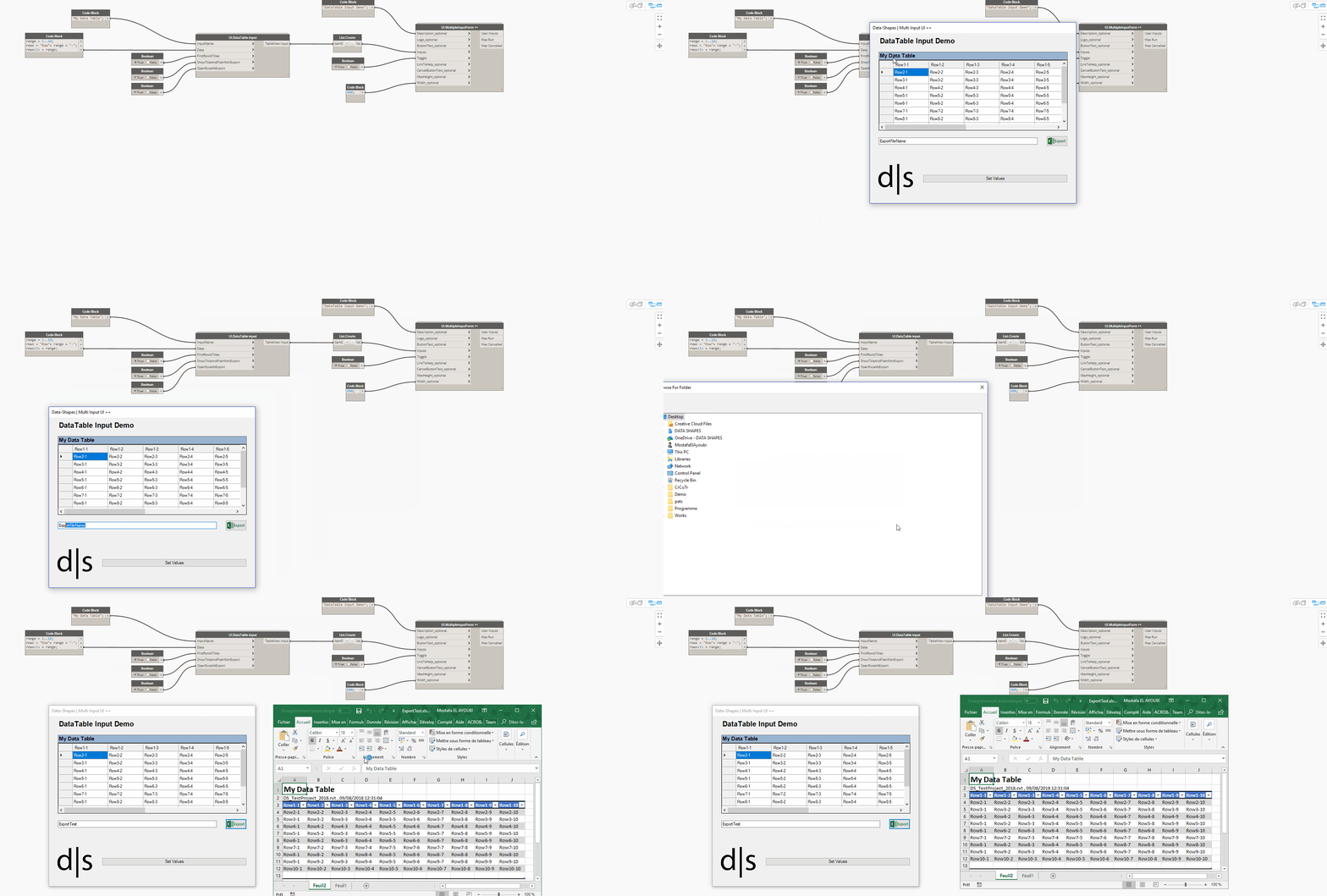
The input is created using the “UI.DataTable input” node :
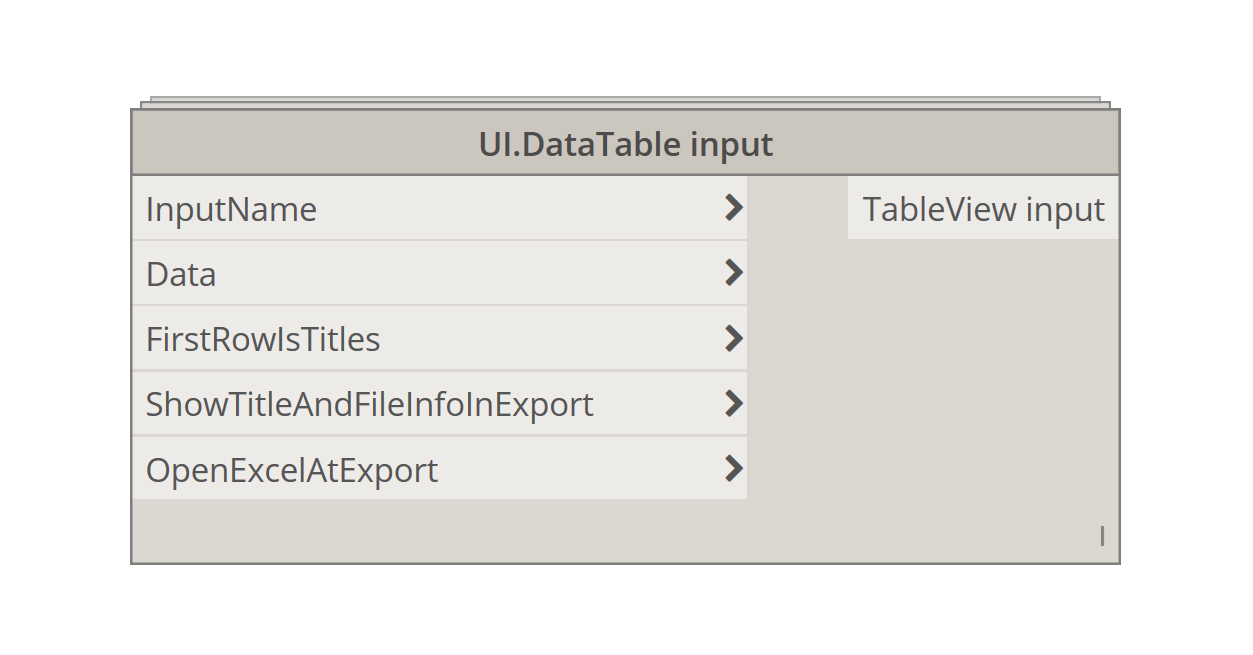
It enables you to display a 2D data list in the form. The 2D list simply needs to be fed to the “Data” input of the node. Each sublist is read as a row:
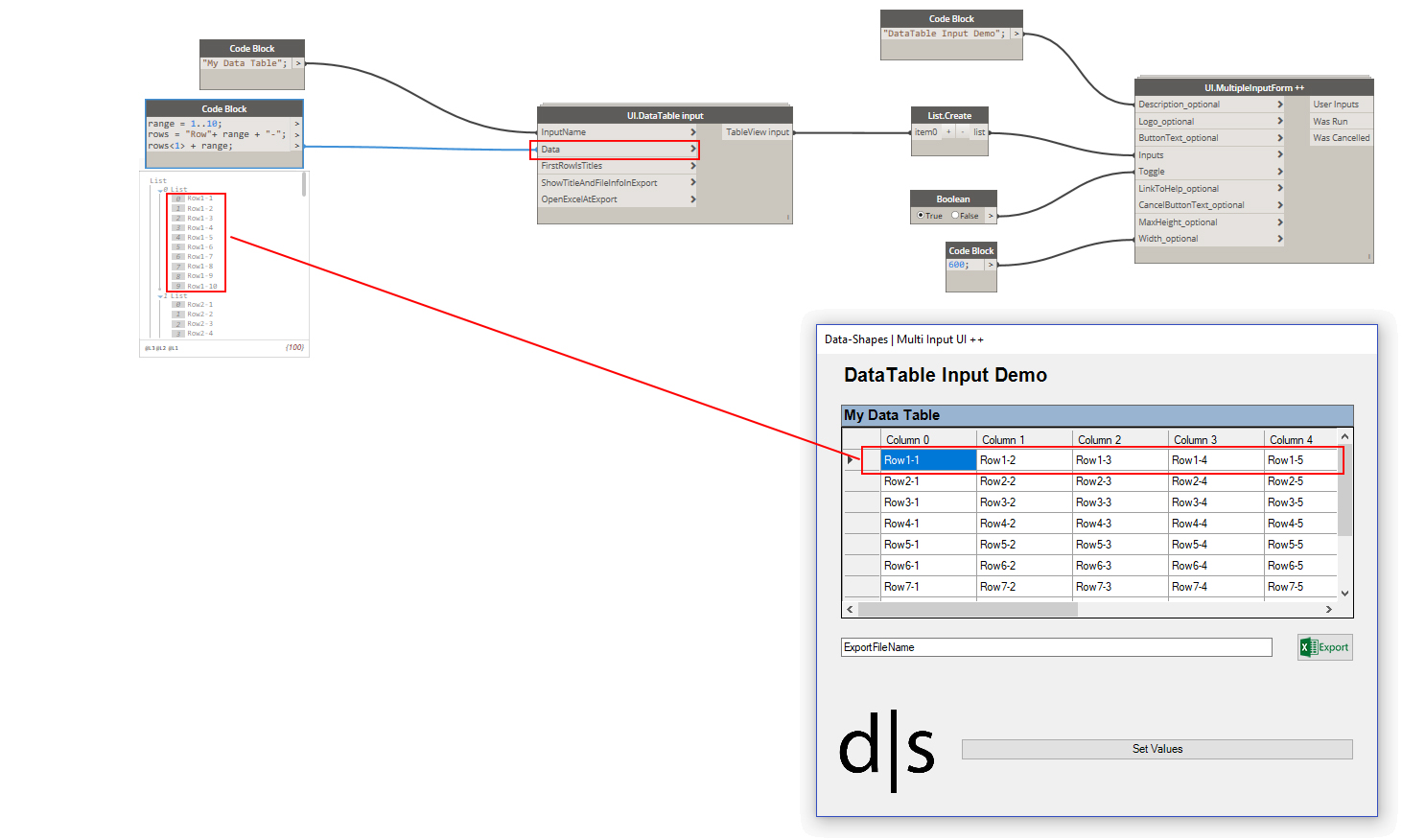
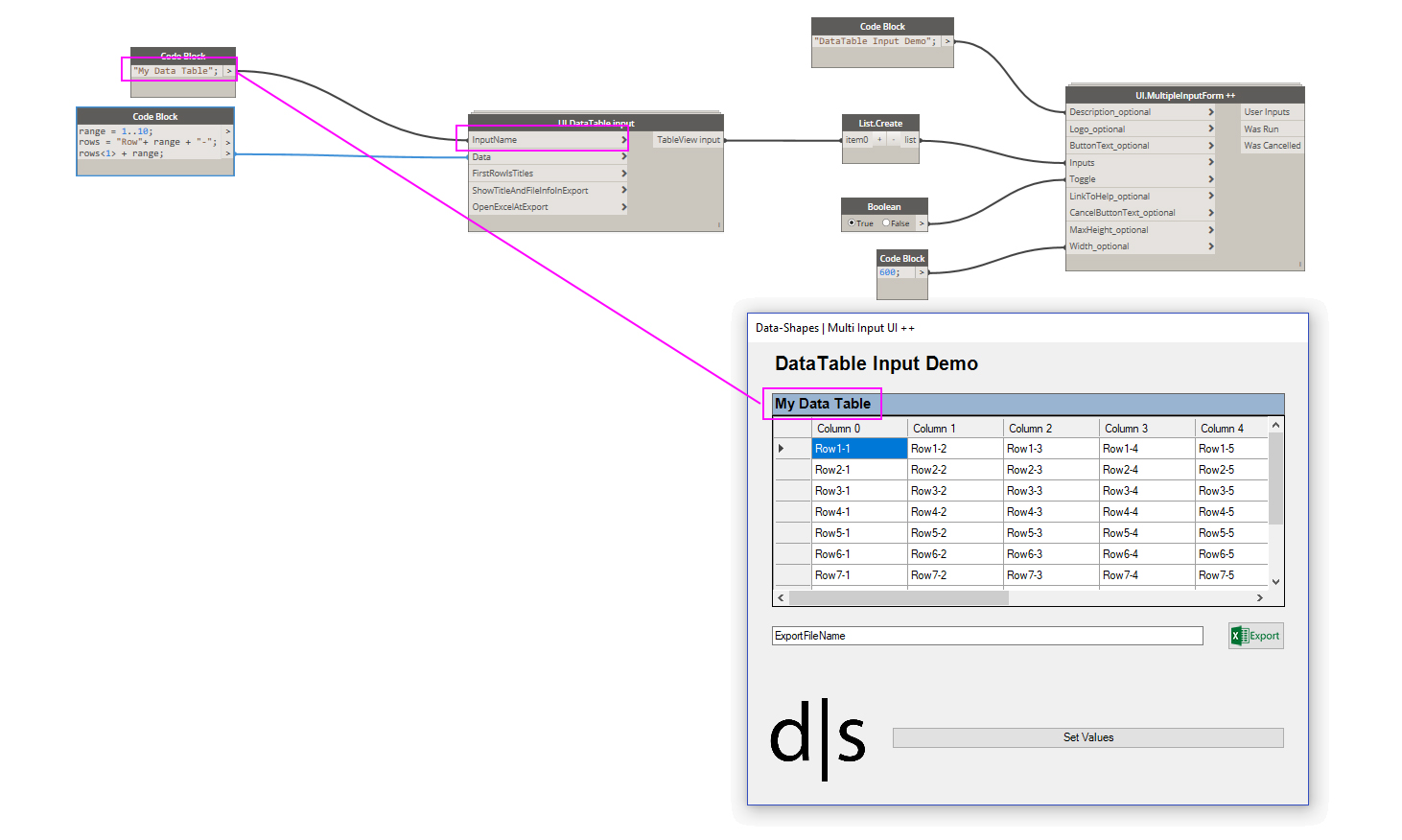
You can add a title to the DataTable through the “InputName” input:
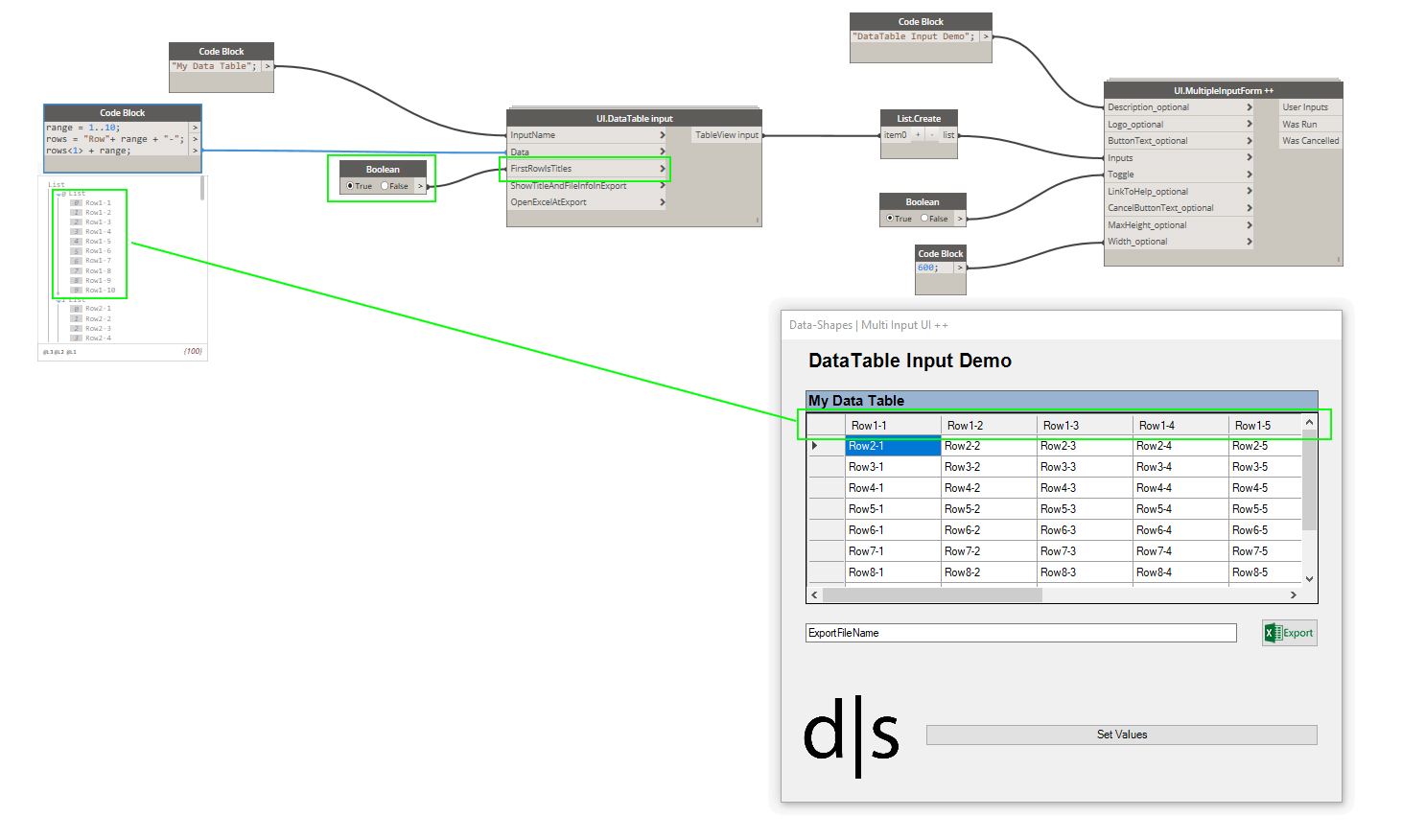
The “FirstRowIsTitles” input is optional. It lets you set the column header of the data table using the first sublist of your 2D data list. Its default value is false:
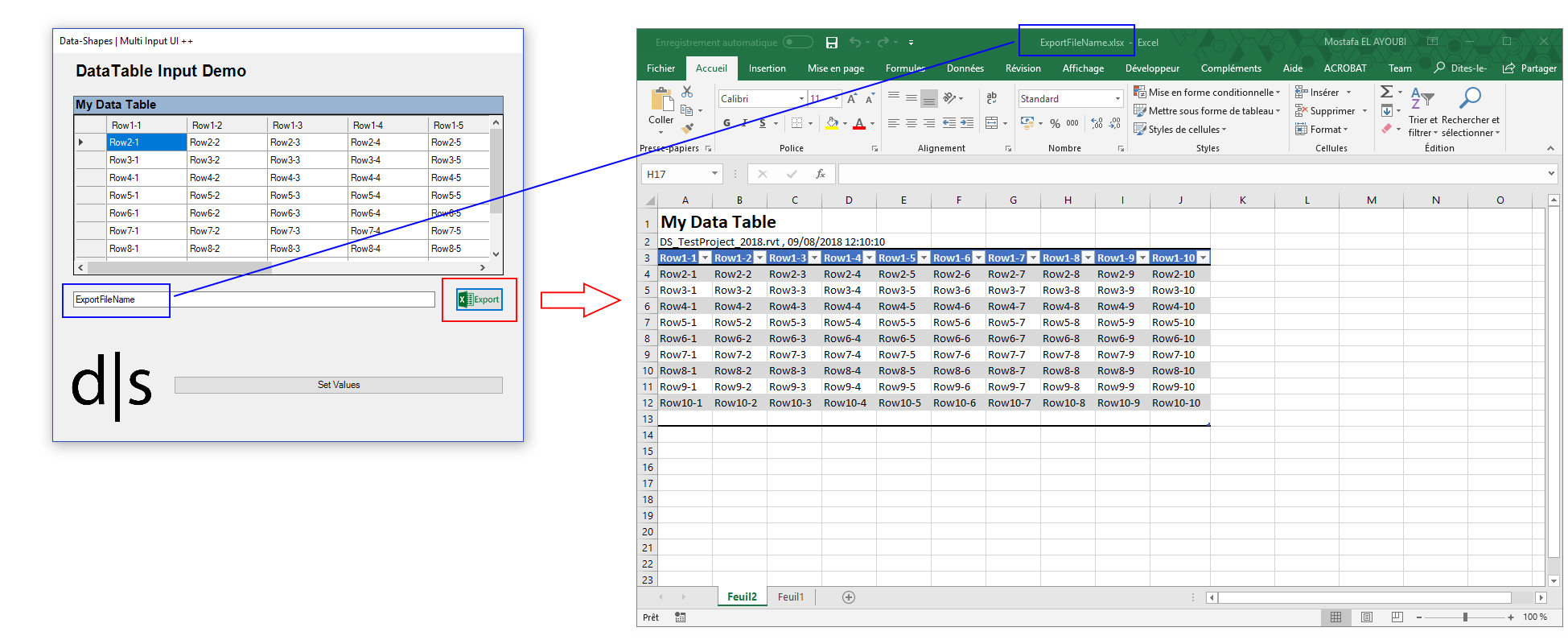
This form input doesn’t only allow displaying the info. It also lets you export it to Excel with some cool features. All you need to do is enter a file name for your export and click on the “Export” button. The exported data is preformatted as a table:
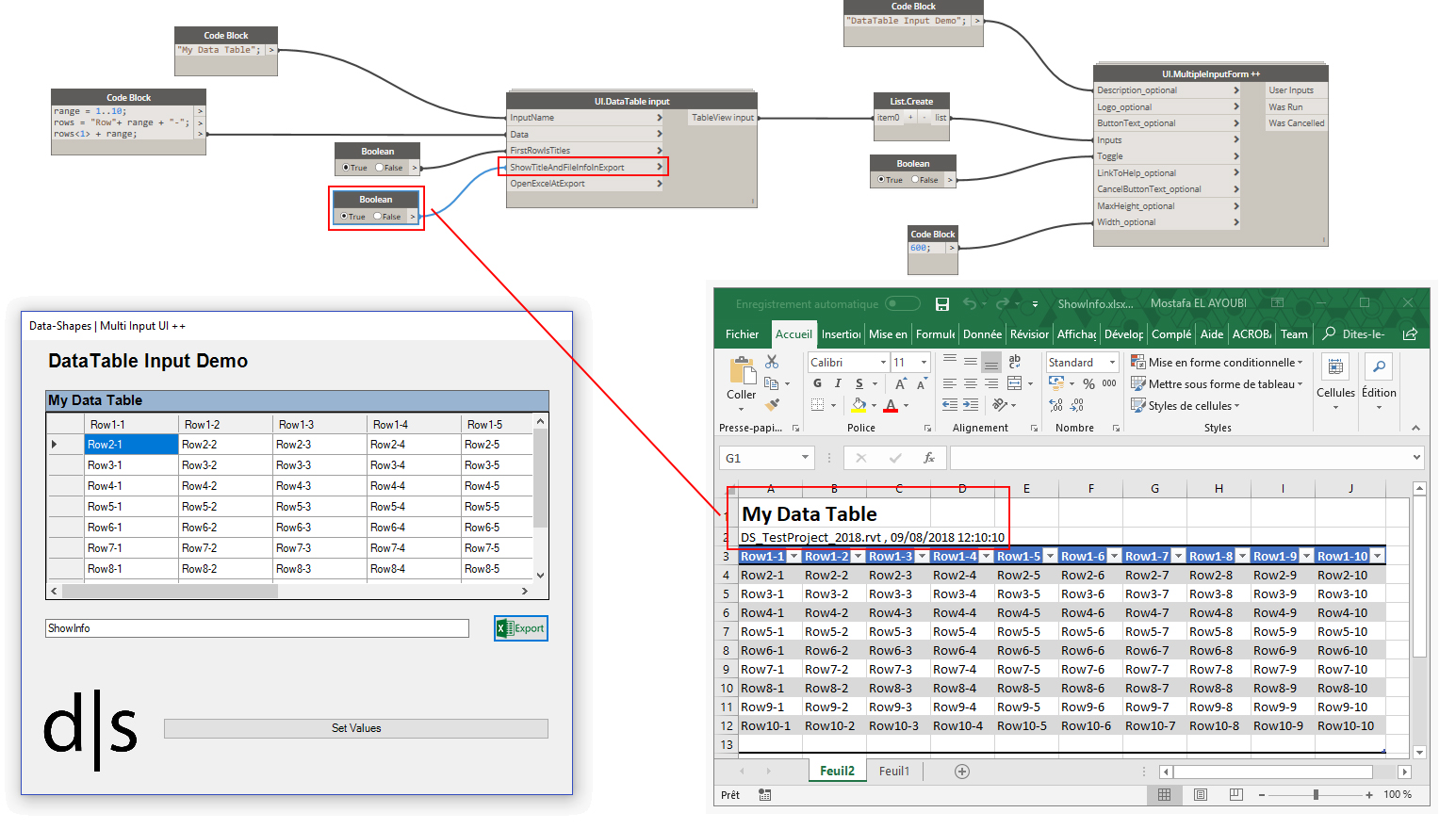
The “ShowTitleAndFilesInfoInExport” input is optional. When set to true, you export your DataTable table along with the active Revit document name and date and time of export. The default value of the input is set to true.
Finally, there is a “OpenExcelAtExport” input which allows you to set whether you want to automatically open the Excel file when exporting or not (unlike the OOTB write to excel node!)
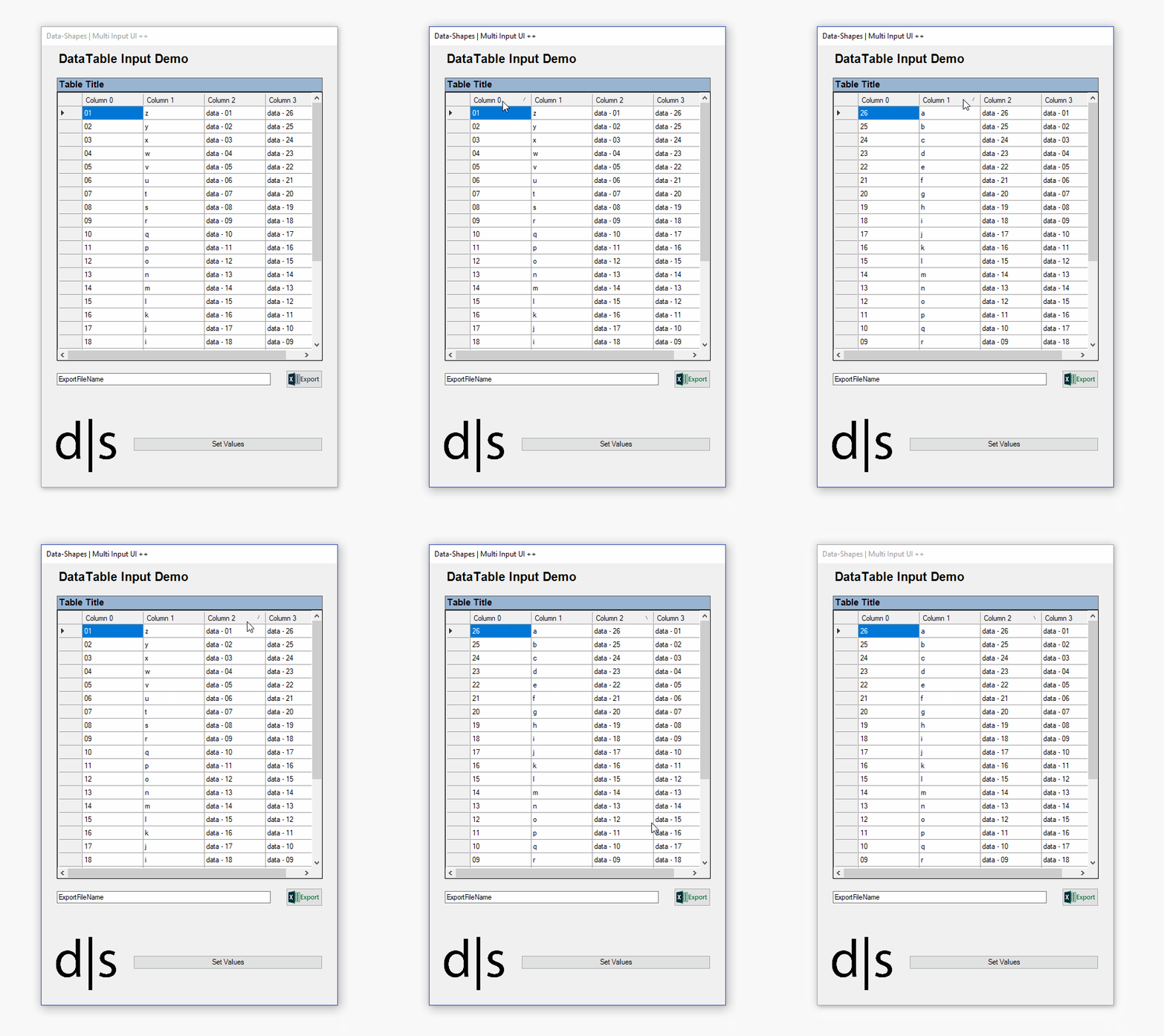
So far, this input doesn’t return anything. It is used for display/export only. It is an interesting way to show data to the user and has a very convenient sorting by column value feature:
That’s pretty much it. As always, all feedback is highly appreciated. Also, if you have any use case or suggestion please let us know.
Also, the github repo is up to date if you want to check the code!
Have a great day!




 data|shapes
Leave a reply to nickjcurtis Cancel reply